
The following article documents our experience configuring Inseego FX3100 and FX4100 devices as backup WAN connections behind a SonicWall firewall. This represents a relatively uncommon deployment scenario and is not how most organizations use these devices.
Our experience with the Inseego FX3100 and FX4100 as standalone 5G Internet gateways and wireless access devices has been overwhelmingly positive. Throughout our testing, we found them to be reliable, cost-effective, and easy to deploy. The observations and recommendations contained in this article relate specifically to the use of these devices in a SonicWall failover WAN configuration and should not be interpreted as a reflection of their overall performance or reliability.
Configuring SonicWall with T-Mobile Inseego Routers as Automatic Failover on Backup WAN and Using a Static IP Address for Monitoring
I recently encountered an issue while configuring SonicWall WAN failover using Inseego wireless routers as backup Internet connections. For a recent multi-tenant project, each location was deployed with a SonicWall firewall. The primary Internet connection was either AT&T or Comcast, while the backup connection used T-Mobile 5G service through an Inseego router. One of the project requirements was that both Internet connections be monitored using ICMP so our NOC could verify connectivity and contact the ISP if a circuit failed. We contacted our client’s T-Mobile representative and requested a static IP address assignment.
Setting the Inseego to bridge mode (passthrough mode) was simple, but the link did not function correctly. There was no inbound traffic, outbound traffic was intermittent, and there were no ICMP (ping) replies despite the setting being enabled in the Inseego UI.
After some research and some help from Inseego’s tech support (special thanks to Rocky Pelfrey @ Inseego for providing the settings shown below) , it appears that setting the device to passthrough mode may require additional settings. In this post, the published settings are for T-Mobile networks, they may work with other carriers but if they don’t, contact your carrier or Inseego to obtain the correct settings.
Inseego is a great product however at the time of this writing, using it in bridge mode as a WAN failover caused some problems that you normally don’t find with ISP routers.
When bridged, the Inseego sent ARP requests from 192.168.1.1 (Inseego’s management IP) targeting the SonicWall public WAN IP on the failover interface X2.
A traffic sniffer revealed SonicWall drop code 753 (“drop bounce same link packet”) observed during the event while isolating ICMP requests. It’s likely that Sonicwall finds these requests suspicious and block traffics to and from the interface.
My recommendation for this type of setup is that if you have to use Inseego as a backup, leave it NAT mode, even if that means double NATing. In bridged mode, Sonicwall does NOT pass traffic through the backup X2 link while the primary X1 is still active and thereby cannot determine whether the the X2 backup link is active or not. If Inseego is in NAT mode, Sonicwall does pass traffic and determine whether the link is alive or not, and in case of failure, send alerts using Sonicwall alert notification.
Inseego works quite well as a backup Internet when connected to Sonicwall in NATed mode. Click here for instructions on how to do configure this easy and reliable setup.
Setting Up Inseego In Bridge Mode as a Sonicwall Failover
We were able to configure bridge mode with the settings below, for a redundant configuration. It has worked well in our lab but I do not recommend it in production. When the primary link X1 fails, the backup link X2 becomes active and traffic is router normally over the backup X2. It accepts inbound ICMP and HTTPS management requests, but while the primary X1 link is active, there is no traffic over X2 and we could not access the HTTPS management interface or receive ICMP requests (pings) in our tests. This made it so that we could not actively monitor the Insego link’s status from our NOC.
If you still want to set up Inseego in bridge mode, and accept these limitations, below are the instructions step by step. Note that, as stated before, my recommendation is to either use another ISP/device for backup or Inseego in NAT mode, for the sake of reliability and simplicity.
Inseego Bridge Mode Passthrough Settings for T-Mobile
Here are the settings that need to be adjusted for using Inseego in bridge mode on T-Mobile’s network:
- Carrier Settingsthe
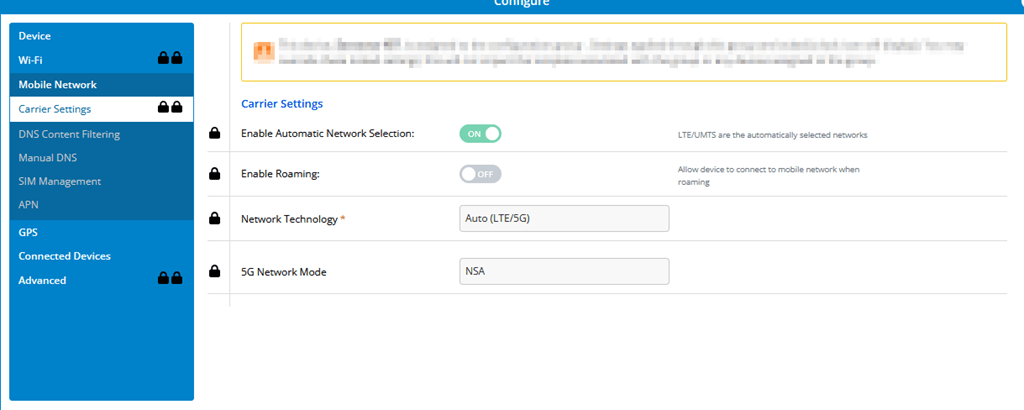
- Set 5G Mode to NSA.
- Network Settings
- Set Network Technology to Auto (LTE / 5G).
- APN Configuration
- Configure the APN as
b2b.static. - Set the APN protocol to IPv4 only (do not use IPv4/IPv6).
- Configure the APN as
- Firewall Settings
- Enable VPN Passthrough.
- Enable WAN Ping.
- IPv6 Settings
- Navigate to LAN → IPv6 and set IPv6 to Disabled.
- Ethernet Port Configuration
- Configure Ethernet 1 and Ethernet 2 as LAN ports.
- When IP Passthrough (IPPT) is enabled, the FX4100 cannot have any WAN ports configured.
- Wi-Fi Settings
- Set Wi-Fi to OFF.
In our case, setting the device to passthrough mode disabled the WiFi and set the APN as b2b.static, but left the other settings as default.
IMPORTANT: contact your T-Mobile representative and request a static IP assignment, as they are generally available only for commercial accounts.
In the Advanced Settings section of the Inseego portal, enable Bridge Mode (Passthrough) and select the interface that will connect to the SonicWall WAN port.

Next, navigate to the Firewall section and enable WAN Ping.

Make sure that WiFi is disabled.
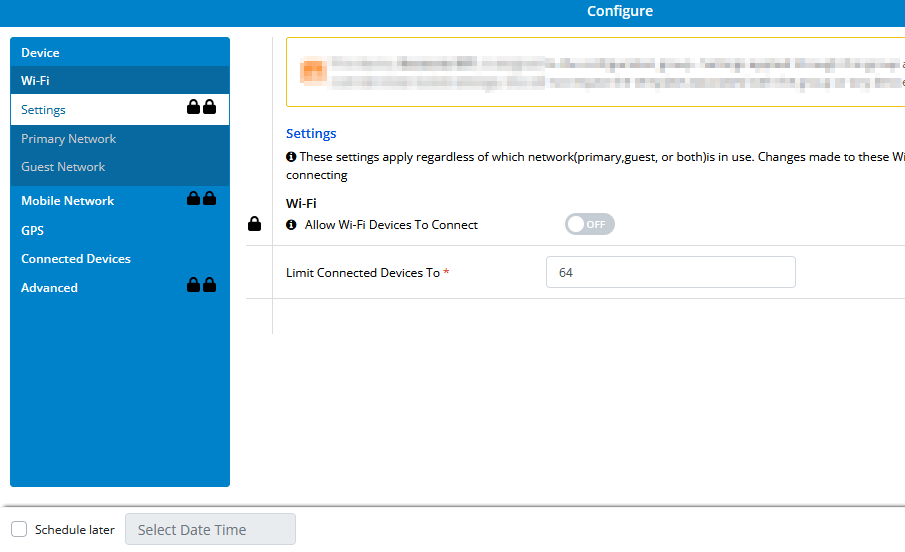
Make sure that the 5G network mode is set to NSA and network technology to auto LTE/5G.
Configure the APN as b2b.static.

Ensure that VPN passthrough is enabled and that WAN ping is checked.

Select the IPPT interface.
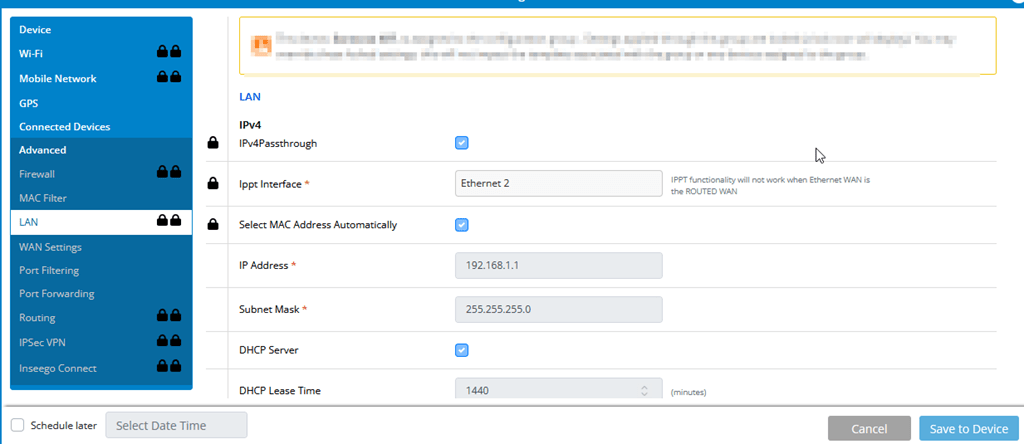
Disable IPV6.

Ensure both physical ports are assigned to the LAN zone.

Routing should be set to symmetric NAT.

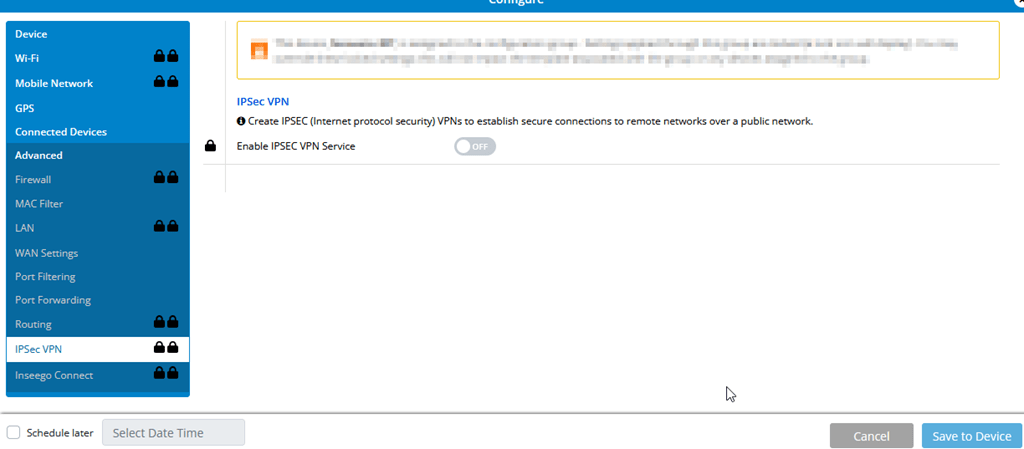
IPSec VPN should be disabled.
Set the heartbeat timer to 5 minutes or less.

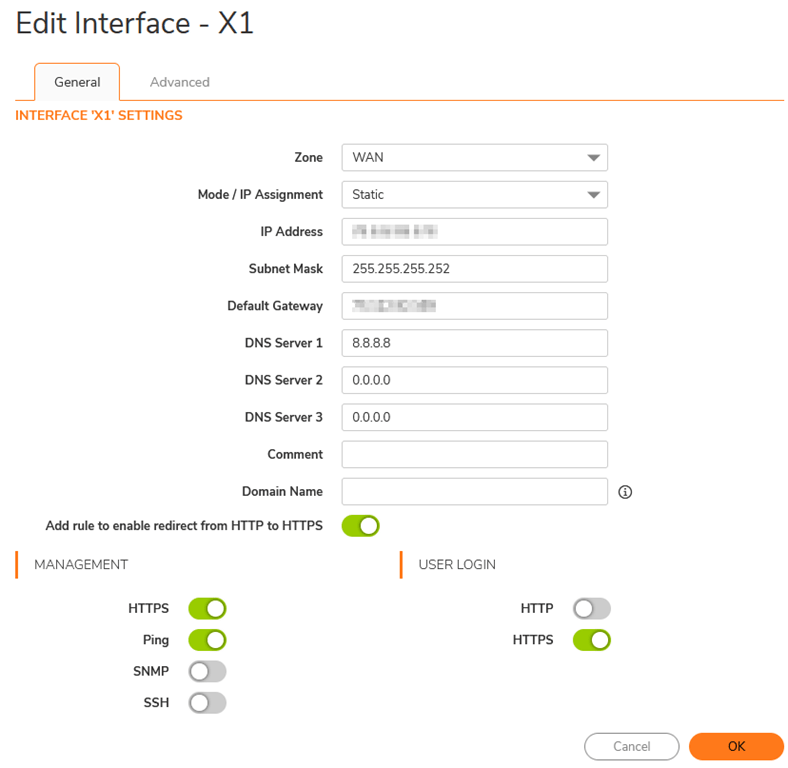
Edit the SonicWall interface management settings to allow ping responses and, if desired, enable remote management access and don’t forget to configure the failover and LB configuration in the Sonicwall’s network settings.
Conclusion
The Inseego FX4100 in our lab performed flawlessly as both a wired and Wi-Fi 5G access point, provided it was not being used as a backup WAN connection in bridge mode behind a SonicWall firewall. I suspect this specific deployment scenario represents a relatively small percentage of real-world installations. Even so, throughout this project I worked closely with an Inseego engineer whose commitment to resolving the issue was exceptional, something that has become increasingly rare among large technology vendors. Given the level of engagement and the fact that Inseego is now aware of the problem, I would not be surprised to see it addressed in a future firmware release.